Vintage Story Dedicated on Ubuntu Server
Table of Contents
Sources
This guide has been adapted from this page: https://wiki.vintagestory.at/Guide:Dedicated_Server
System Setup
Install Ubuntu Server and make user
You can use the Ubuntu Server page to get OS installation tips.
If you follow these exact directions then you can skip a configuration step later.
Make a user named vintagestory. Give sudo them permissions. Then log out as root, and log in as vintagestory:
adduser vintagestory

usermod -aG sudo vintagestory

exit
Update & Upgrade
Update your package lists and upgrade.
sudo apt update

sudo apt upgrade
Install required packages
The .NET framework
The latest Testing build requires the 8.0 version of the .NET framework.
sudo apt install dotnet-runtime-8.0
Screen
sudo apt install screen
Get the game software
Make a directory
If you follow these exact directions then you can skip a configuration step later.
Make a directory named server and move into it.
mkdir server

cd server
Download the software
You can get the software from the developer's site and going to the Client Area and then to the Downloads section. I suggest looking at all the available downloads and using the (server only) version.
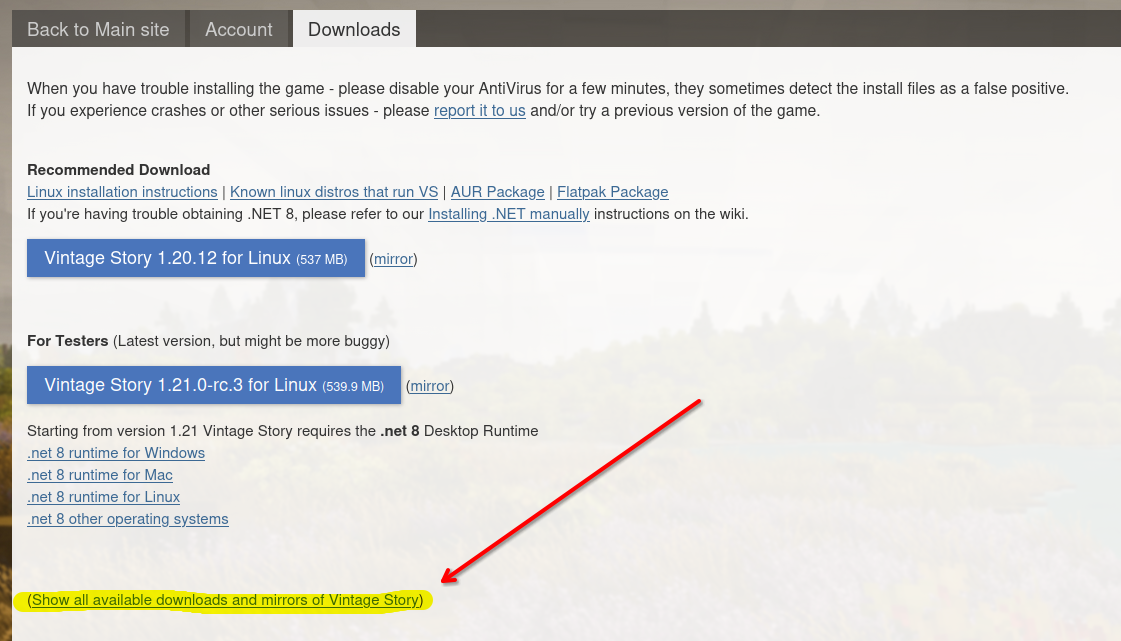
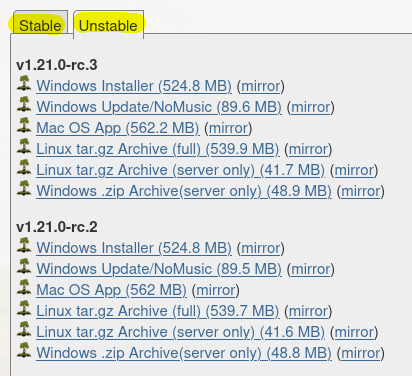
Link: https://account.vintagestory.at/downloads
Right click and copy the link for the version you would like.
If you are on a server environment without access to a GUI you will want to paste the URL somewhere you can read it, like a text editor on your phone or another computer, then type out the URL in the command below in your terminal.
If you are in a remote session and have access to a GUI and your terminal then you should be able to paste the URL in the command below using Ctrl+Shift+V.
Download the software with the wget command followed by the URL for the version you want, either pasted in or typed in.
wget https://cdn.vintagestory.at/gamefiles/stable/vs_server_linux-x64_1.21.1.tar.gz
Extract the software
The file you downloaded is a compressed tar file, use this command to extract it. Since you should only have this one file in the new server folder you can press Tab to autocomplete the filename.
tar xzf **press tab here**
Make the server.sh file executable
This will make the server script a file you can run.
sudo chmod +x server.sh
Configuration
Edit the server.sh file
If you did not follow the user and directory directions you will need to edit this file to match your custom setup. Otherwise you may want to edit this for other configuration reasons.
sudo nano server.sh
Edit the World Configuration
To edit the fine details about the world like map coloring, hunger speed, days per month and more - I suggest starting the server, then running commands to configure the world as you would like, then stopping and restarting server. See below for the command directions.
Alternatively, you can set up your world settings in a single player world and then transfer that configuration file to the server.
Edit the serverconfig.json file
This file will not exist until you start the server in the next section. You can come back to this later or transfer and edit a file from another source.
The serverconfig.json file holds the configuration for your server with things like, network port, password, welcome message, etc.
sudo nano /var/vintagestory/data/serverconfig.jsonYou can review what the settings mean here: https://wiki.vintagestory.at/Server_Config
Running the Server
Starting the server
Run this while in the server directory.
sudo ./server.sh start
Stopping the server
Run this while in the server directory.
sudo ./server.sh stop
Using server commands from the terminal
While in the server directory you can run commands as the server. Commands can be used to whitelist users, configure the world and more.
Commands are case sensitive and start with ./server.sh command then a space and the command you want to run in quotes.
You will likely want to whitelist and OP your admin account(s) while in the console.
./server.sh command "player player_name whitelist on"./server.sh command "op player_name"
This example enables the 'Accurate Color Map' for players.
./server.sh command "/worldconfig colorAccurateWorldmap true"Link to commands: https://wiki.vintagestory.at/List_of_server_commands
Connecting
Remember to set up port forwarding on your router/equipment for your game server.
Vintage Story uses port 42420 on both TCP and UDP.
Advertise & Whitelist
Upgrading
Stop the server.
sudo ./server.sh stopGo to your main directory.
cdMove the server directory to another location.
sudo mv /server /server_oldMake a new server directory.
mkdir serverEnter the server directory
cd serverJust like the directions in previous steps you will want to download the latest version, extract the archive, and start the server. Your settings and world data should be saved and ready to go.
Checking Logs
The log files are saved in this folder where vintagestory is the username:
/var/vintagestory/data/Logs
This command will let you quickly scroll through the last 200 logs with the arrows and page up and down. Press q to stop.
tail -n 200 /var/vintagestory/data/Logs/server-main.log | less