Hosting OpenTTD on Ubuntu Server
Table of Contents
Sources
Official game website: https://www.openttd.org/
OpenTTD server information: https://wiki.openttd.org/en/Manual/Server
OpenTTD dedicated server information: https://wiki.openttd.org/en/Manual/Dedicated%20server
Directions adapted from this source: https://docs.vultr.com/how-to-install-an-openttd-server-on-ubuntu-20-04
Install required software packages
Install the packages needed for the game to run.
sudo apt install -y fontconfig-config fonts-dejavu-core libasyncns0 libfontconfig1 libpulse0 libsdl2-2.0-0 libsndfile1 libvorbisenc2 libwayland-client0 libwayland-cursor0 libwayland-egl1 libxcursor1 libxfixes3 libxi6 libxinerama1 libxkbcommon0 libxrandr2 libxrender1 libxss1 libxxf86vm1 x11-common libfluidsynth3 libflac12t64Install Screen and Unzip to run game in a terminal and be able to extract the gfx files.
These are not included in the above for clarity.
sudo apt install screen unzip
Setup the OpenGFX Graphics Package
On the same page where you download the game there should be a link for downloading OpenGFX files:
https://www.openttd.org/downloads/opengfx-releases/latest
Make this directory path, it will hold the graphics files. The ~ fills in your "/home/username/" and the -p creates both directories time, ".openttd" and "baseset".
mkdir -p ~/.openttd/basesetChange locations to the new directory.
cd ~/.openttd/basesetCopy the link and download the file using wget. Be sure to check for the latest URL. The URL in this example may be deprecated.
wget https://cdn.openttd.org/opengfx-releases/7.1/opengfx-7.1-all.zipExtract the gfx zip file.
unzip **press tab here to auto-complete**Extract the gfx tar file that was in the zip.
tar -xf **press tab here to auto-complete**
Get the game software
Go to your home directory. Make a directory for the game files. Move into the new directory.
cd

mkdir openttd-server

cd openttd-server
Get the game from the source and note the version number you're using as your players will likely need to run the same or similar version. There is the 'latest' stable version and newer testing versions, choose one.
Stable Release
https://www.openttd.org/downloads/openttd-releases/latest
Beta Release
https://www.openttd.org/downloads/openttd-releases/testing
Copy the link for the 'Linux Generic Binaries' file and download it using wget. Be sure to check for the latest URL. The URL in this example may be deprecated.
wget https://cdn.openttd.org/openttd-releases/14.1/openttd-14.1-linux-generic-amd64.tar.xzExtract the tar file you downloaded.
tar -xf **press tab here to auto-complete**Change into the new directory made during extraction.
cd **press tab to auto-complete**Make the server file executable.
sudo chmod u+x openttd
Initial Run
▶️ Do a first run so the game creates the configuration file(s). The -D modifier runs the game in server mode.
./openttd -D🛑 Stop the game server with Ctrl+c.
NewGRF / Additional Content
You can load additional content to OpenTTD to expand or change gameplay in all types of ways. Some of this content can add more vehicles and rules, know as "NewGRFs".
The process of adding this content to your server is a bit of a hassle, requiring you to first acquire the content you want in a game client, then transferring the content. However, using this method allows you to easily configure settings using the GUI on your game client.
If you are familiar with a better/faster/stronger method of getting NewGRF on a dedicated server please reach out.
Here we go!
First, in your game client, select and Download the NewGRF(s) you would like to use on your server.
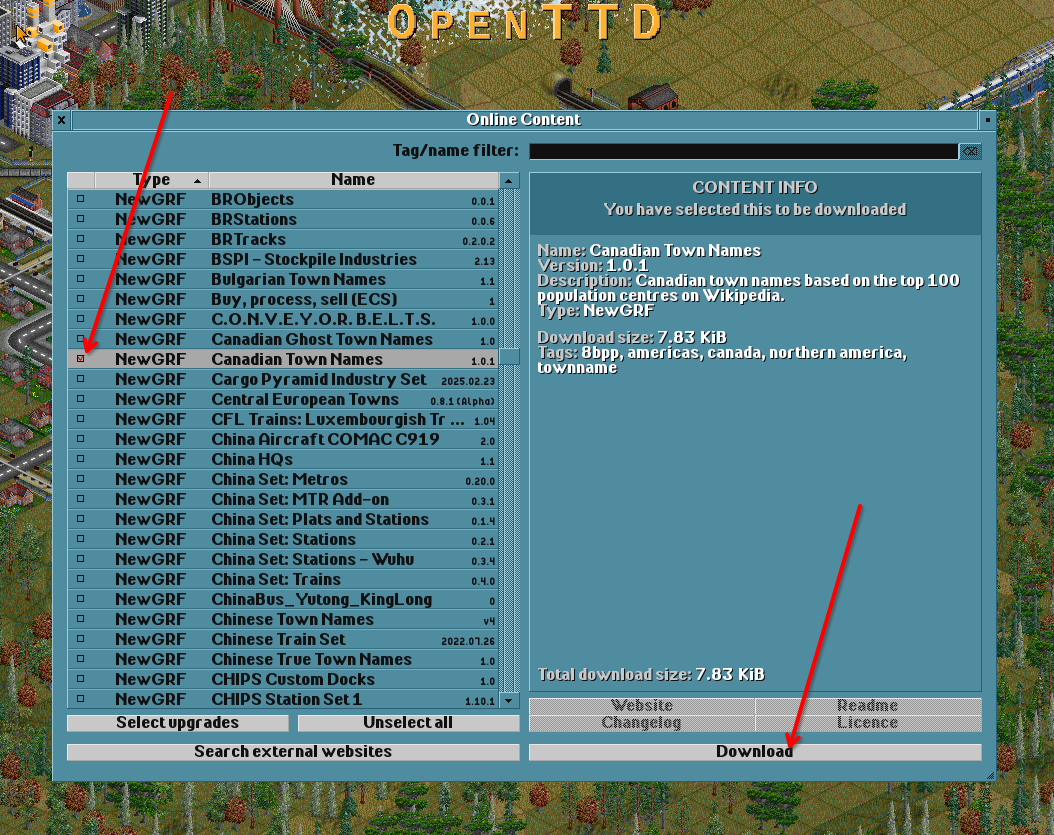
Click New Game on the main menu.
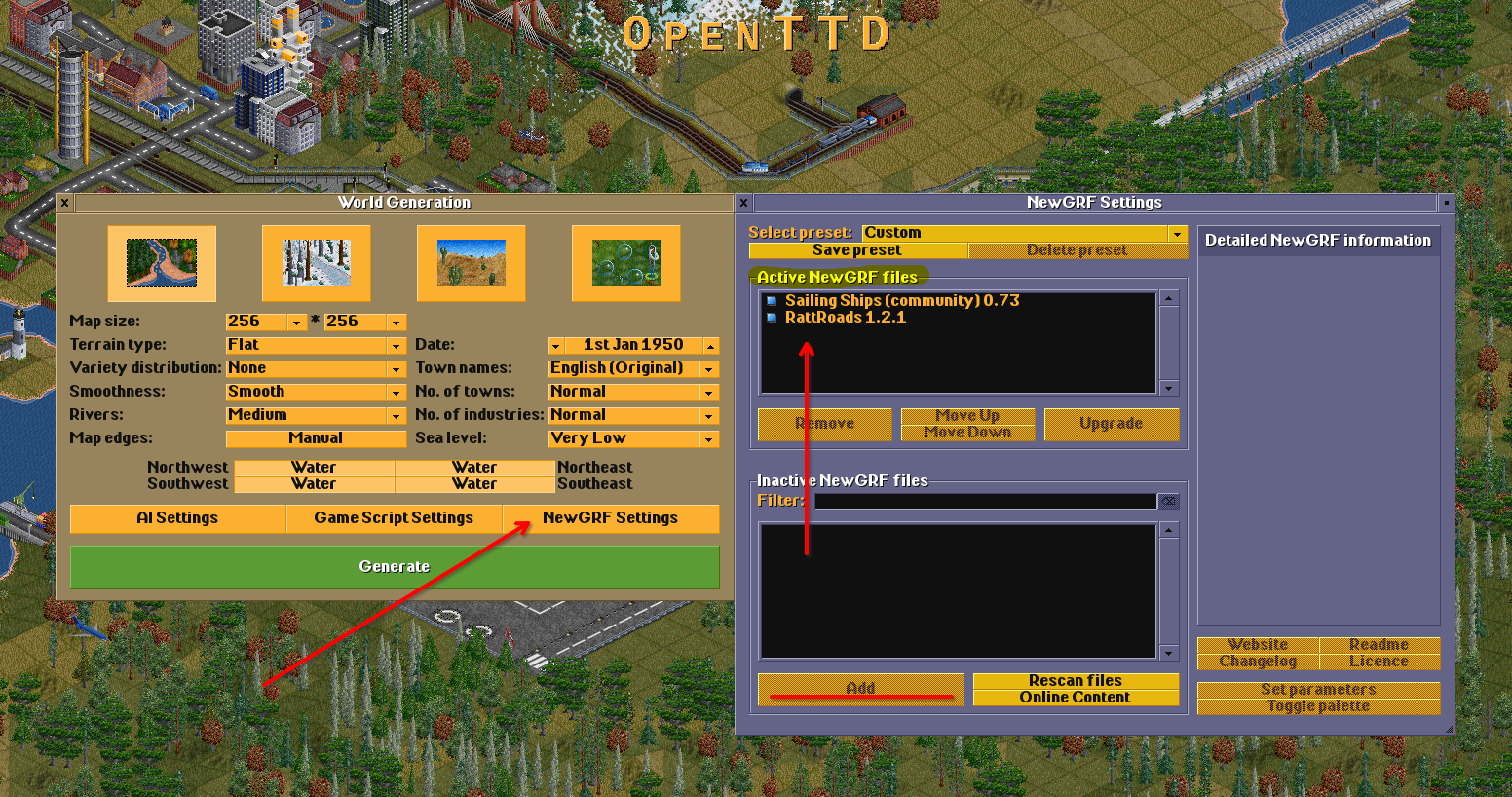
Click NewGRF Settings and Add all the NewGRFs you want to use on the server. They should all be in the upper Active area.
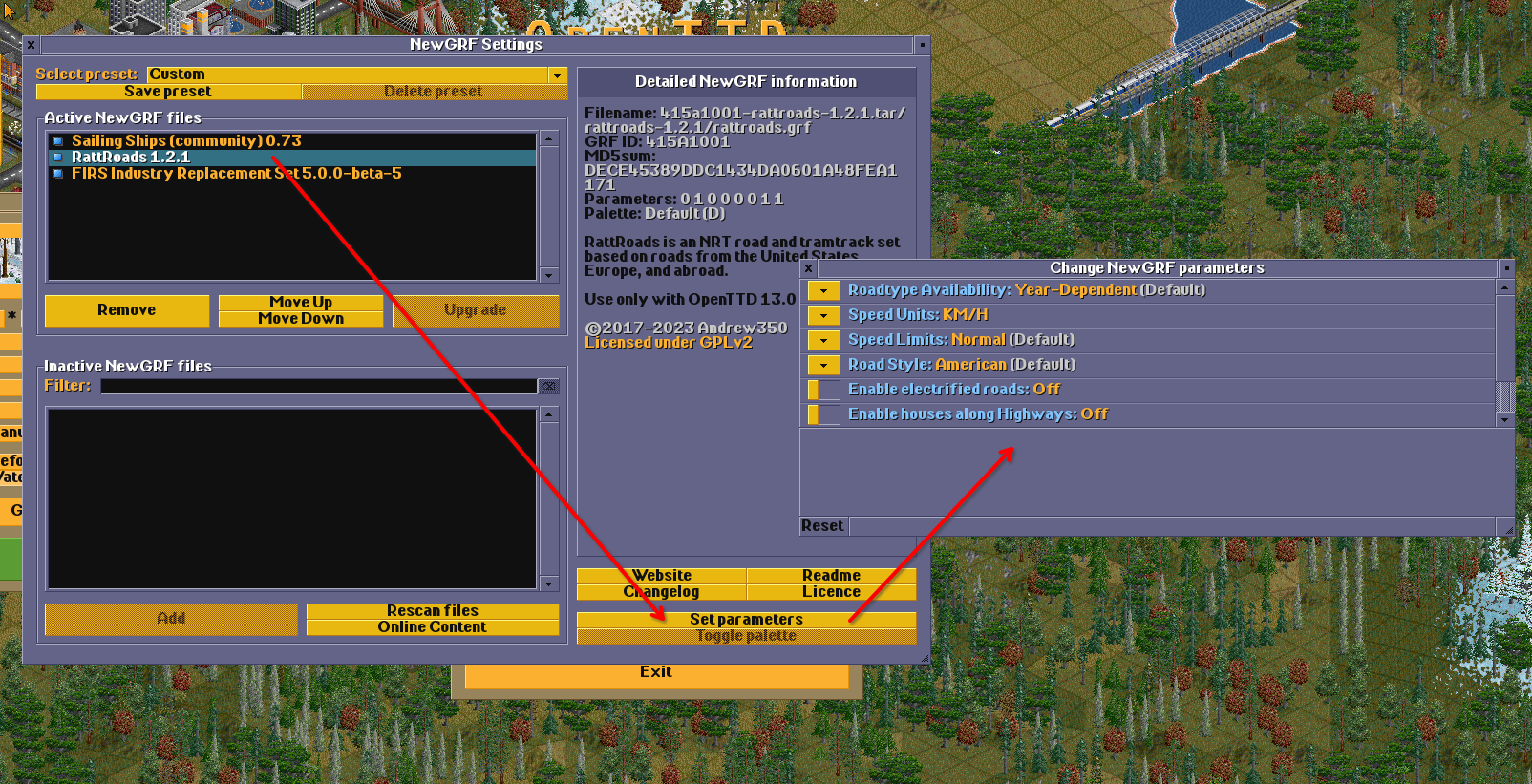
Be sure to click on Set parameters for each NewGRFs and adjust as needed.
After finishing up the NewGRF move on to adjust the world settings like the map size and type, the water access, etc. We will copy over this entire configuration from the game client to the game server.
Click Generate to start the world. Then quit the game.
Locate these NewGRF archive file(s) on your machine. I found mine here:
~/.local/share/openttd/content_download/newgrf/
Use an sftp application like FileZilla to transfer the NewGRF files from your machine to the server. Do not extract the tar archive files.
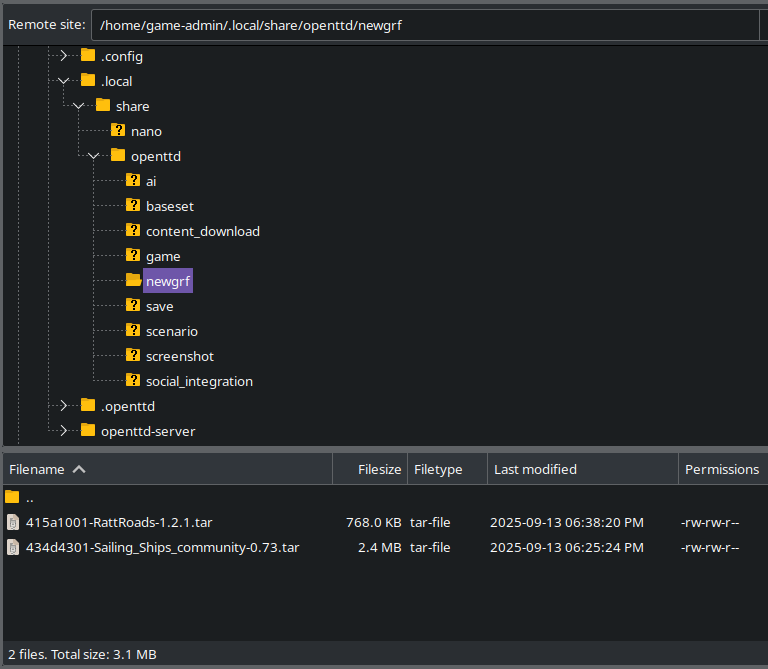
Server directory: ~/.local/share/openttd/newgrf
Here is an example of my server after moving two NewGRF files:
Now copy the openttd.cfg configuration file from your game client machine to your server. I located mine on my machine here: ~/.config/openttd/openttd.cfg
Game Configuration
You may still want to edit some more settings before you are ready to launch the server - like the options in the [network] section. Edit the server's openttd.cfg file to meet your needs.
sudo nano ~/.config/openttd/openttd.cfgBe sure to modify server_game_type to public.
server_game_type = publicOfficial configuration information: https://wiki.openttd.org/en/Archive/Manual/Settings/Openttd.cfg
If your config file is not at he location above, you can find it with the command below.
sudo find / -name "openttd.cfg" 2>/dev/null
Run
After you have the game configured you should be ready to go. When you're ready navigate to your ~/openttd-server directory and run this command to launch the server application.
./openttd -D
Administration
Server configuration
You can update the server's name in the global list, and add a server password if you want it to be private and update the server name
server_password "your_password_here"

server_name "your_server_name_here"
Console Commands: https://wiki.openttd.org/en/Manual/Console%20Commands
Server Console Cmmands: https://wiki.openttd.org/en/Manual/Console#server-commands
Running this command will display administrative help and some application information.
./openttd -h
Port Forwarding
Remember to port forward the game service on your network equipment. The default game port is 3979 using both TCP and UDP.